

Budgets
Budgets let you set a spending target for a defined scope and get notified when actual spend approaches or exceeds that target. They're the simplest way to keep a finance owner, a team lead, or an account admin aware of where the bill is heading without anyone having to log in and check.
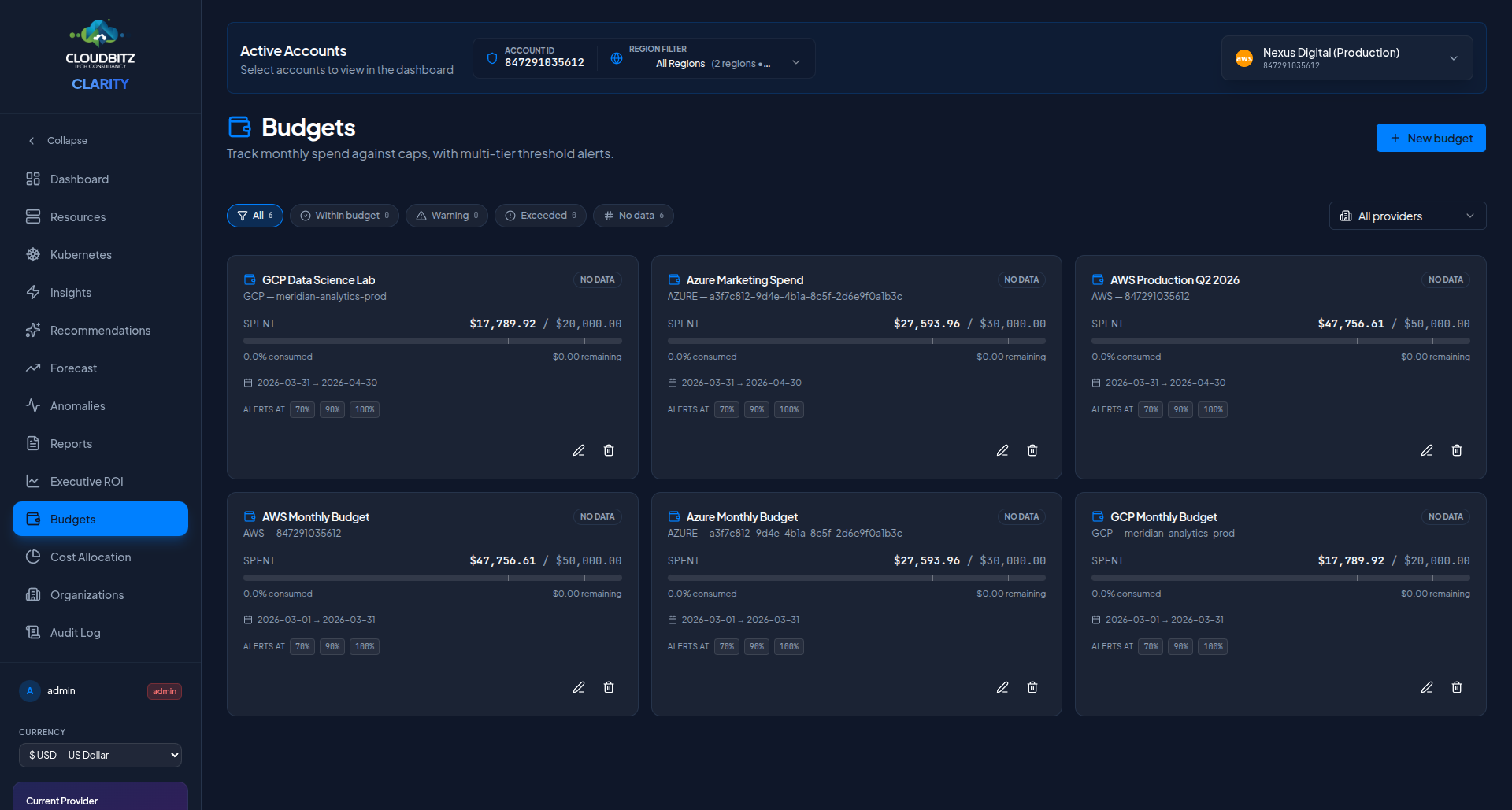
What budgets do
A budget has four pieces:
- A target amount — what you expect to spend in the period
- A period — monthly, quarterly, or yearly
- A scope — which providers and accounts the budget covers
- One or more alert thresholds — percentage points at which CLARITY notifies you
Once configured, CLARITY tracks the in-period actual spend against the target on every sync. As thresholds are crossed, the configured notification channels fire. The budget keeps tracking until the period ends, then the period rolls forward and the cycle starts again.
Where to find it
Sidebar → Budgets.
The page lists every budget configured for your tenant, the current consumed percentage, period end date, and status. Click a budget to see its history and threshold configuration. The + New Budget button opens the create dialog.
Scope options
When you create a budget you choose what it covers:
| Scope | Covers |
|---|---|
| All providers | Every connected AWS, Azure, and GCP account |
| Specific provider | All connected accounts for one provider |
| Specific account | One connected cloud account |
Service- and tag-level budgets (e.g., "all team:platform resources" or "EC2 only") are on the roadmap and not yet available.
Cross-account aggregation in progress
Budgets scoped to All providers or Specific provider rely on the cross-account spend aggregator, which is still being rolled out. While it ships, those budgets will display No data even when accounts have spend. As a workaround, create one budget per cloud account and sum the targets — the per-account budgets work today and notify normally.
Period
Three options. The period determines when the budget resets.
- Monthly — resets on the first of each month
- Quarterly — resets on the first of Jan, Apr, Jul, Oct
- Yearly — resets on January 1
In-period spend uses the same data source as the rest of CLARITY (provider billing APIs). Because some providers post data with a delay, the percentage shown is always "best known so far" and may move slightly the next sync.
Threshold model
Every budget ships with three default thresholds: 70%, 90%, and 100%. You can edit, remove, or add thresholds when creating or editing the budget. Thresholds are integers between 1 and 200 (you can configure an alert at 150% to confirm the budget kept blowing past target, for example).
Each threshold fires once per period. If a budget crosses 70% then drops back below it (e.g., a refund posts) and crosses again, the second crossing does not re-notify in the same period.
Notification channels
When a threshold fires, CLARITY notifies via the channels configured for your tenant:
- Email — every user with the admin role on the tenant, plus any additional addresses listed on the budget
- Slack — into the channel configured at the tenant level
- Teams — into the webhook configured at the tenant level
Channel configuration lives in Administration → Settings → Integrations. If a channel is not configured at the tenant level, the budget cannot route to it. Email is always available because it falls back to the admin user list.
Status semantics
Each budget displays one of four statuses:
| Status | Meaning |
|---|---|
| Within budget | In-period spend is below the lowest configured threshold |
| Warning | At least one threshold (typically 70% or 90%) has been crossed |
| Exceeded | The 100% threshold has been crossed for the period |
| No data | CLARITY has no spend data for the budget's scope this period |
No data can mean three things: the period just started and sync hasn't run yet; the scoped account has zero spend; or — most commonly today — the budget is scoped to All providers or Specific provider and the cross-account aggregator hasn't caught up. See the warning under Scope options.
Editing and deleting
Open a budget and click Edit to change the target, period, scope, thresholds, or notification list. Edits take effect on the next sync.
Click Delete to remove a budget. Deletion is immediate and removes the budget's history. There is no undo.
TIP
Don't delete a budget mid-month if you want to keep its alert history for an audit. Edit the target instead, or wait for the period to roll over and create a replacement.