
Business Insights
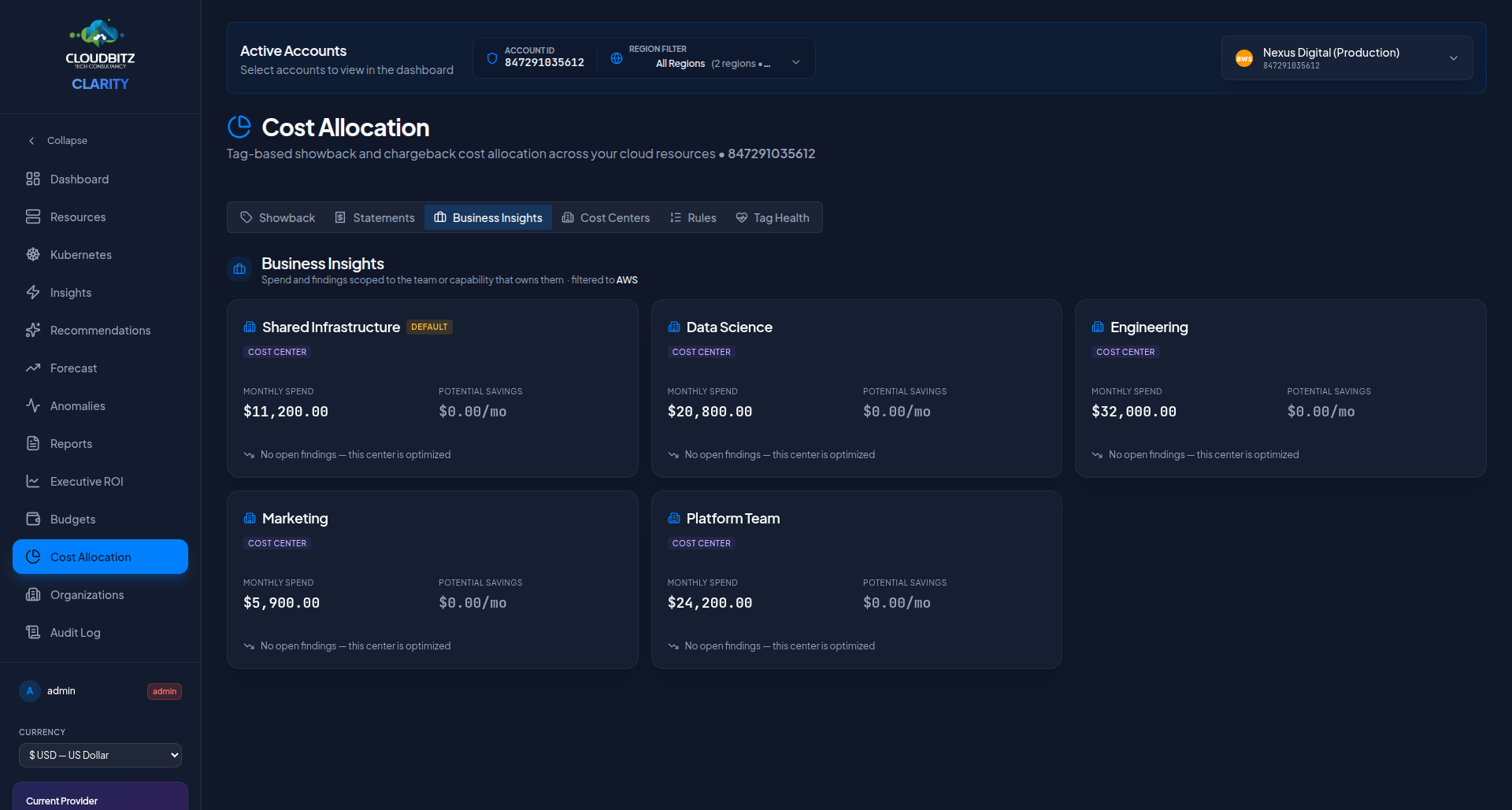
The Business Insights tab on the Cost Allocation page maps every cloud cost to an accountable owner — so findings don't sit on dashboards waiting for someone to notice them. It answers the two questions dashboards usually leave open: who owns this spend, and what hasn't been fixed yet?
What it does
Four things, all on one tab:
- Orphan Spend banner — totals the dollars that no allocation rule claims. If cost centers exist but a resource doesn't match any rule, its spend lands in the default cost center and also surfaces here so the gap is visible, not hidden.
- Cost-center cards — one card per cost center, showing monthly spend, potential savings from open findings, the top three findings by savings, and an age badge on each finding ("47d open") so stale items stand out.
- AI tag suggestions — a one-click action on the orphan banner that asks CLARITY to suggest likely
team,env,owner, andprojecttags for unallocated resources, with confidence levels you review before applying. - Savings scorecard — three KPI tiles at the top of the Insights page: Identified, Acted, Realized. So you know not just what CLARITY found, but what got fixed.
Orphan spend
When a resource doesn't match any allocation rule, its cost goes to the default cost center. That's technically correct but it buries the accountability gap. The orphan banner pulls the same dollars up to the top of the view:
- Amount — total monthly spend with no explicit owner rule
- Resource count — how many resources contribute
- Top untagged resources — ranked by monthly cost
TIP
If the orphan amount is stubborn and your tag coverage looks good, check Tag Health → Tag aliases — you may have the same concept spelled three different ways (Environment, env, Env), and a tag alias will normalize them into a single canonical key.
AI tag suggestions
Click Suggest tags with AI on the orphan banner to ask CLARITY to infer likely owners for unallocated resources. For each resource, the AI looks at:
- Naming patterns — does the resource name encode a team or environment (e.g.,
data-eng-etl-prod-03)? - Network placement — which VPC, VNet, or subnet cluster does it sit in? Do its neighbors all have the same tag?
- Service category and region — which team typically owns this type of resource in your org?
- Provider-native metadata — owner tags, creation principal, resource-group hierarchy
CLARITY returns a suggestion per resource with a confidence level:
| Confidence | What it means |
|---|---|
| High | Multiple signals agree (e.g., naming + neighbors + resource-group). Safe to apply directly. |
| Medium | One strong signal. Review the resource before applying. |
| Low | Weak signal. Useful as a starting point; human judgment required. |
| Unknown | Not enough signal to guess. The AI refuses rather than hallucinating. |
You apply suggestions individually or in bulk. Nothing is tagged without your confirmation.
INFO
The AI won't guess when it can't tell. If your resources are consistently unnamed and untagged, some will come back as unknown — that's the tool being honest, not lazy.
Case-insensitive tag matching
Allocation rules are now case-insensitive by default. A rule matching team=backend will also match resources tagged Team=Backend, TEAM=BACKEND, or any case permutation. This is layered on top of the existing tag aliases, so manual aliases still win if declared.
In practice this closes a common gap: the team tag from your IaC module and the Team tag from a team lead's click-ops resource get the same cost-center assignment without needing to create an alias for every variation.
Savings scorecard
The scorecard on the Insights page answers "CLARITY found X — but what actually happened?":
- Identified — total potential savings across all open findings
- Acted — savings from findings you've marked as applied (via the Apply button on an insight)
- Realized — savings CLARITY has detected as actually closed in the trailing 30 days
Realized reads from the cost data itself — the savings number shows up once the resource is gone, not when the insight is clicked.
Weekly digest
Business Insights can send a weekly digest over Slack, Teams, or email. The digest covers:
- New orphan spend since last week
- New insights by cost center
- Acted-on savings over the past 7 days
- Top cost-center month-over-month drift
Configure the destination in Settings → Notifications. Or trigger an ad-hoc digest via POST /api/notifications/digest.
What's next?
- Cost allocation — the allocation rule engine that feeds Business Insights
- Insights — underlying finding stream
- Cost Allocation → Tag Health — tag coverage and compliance scoring