

User management
CLARITY supports multiple user accounts with role-based access control. This guide covers creating, managing, and maintaining user accounts.
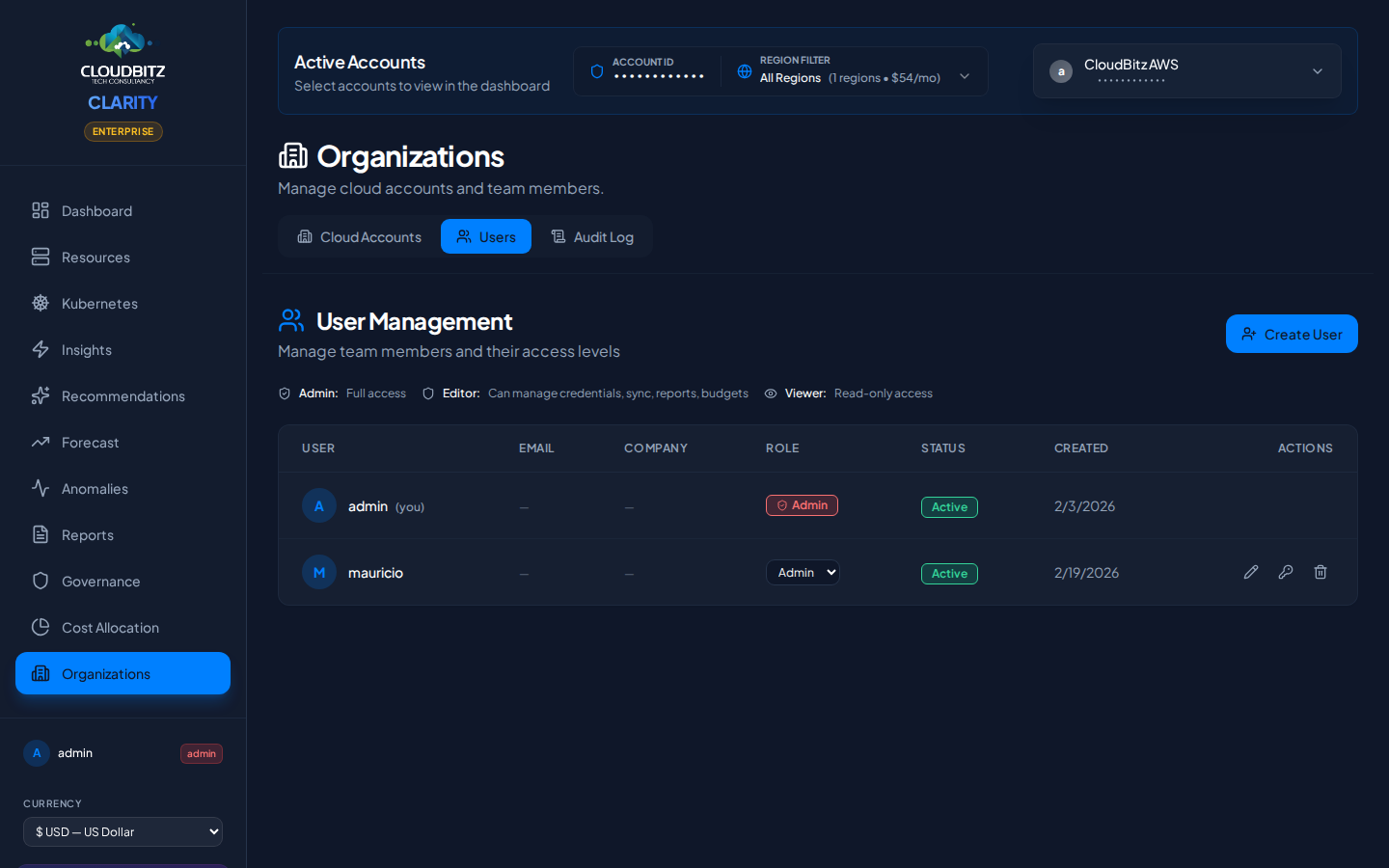
Creating a user account
Administrators can create new user accounts from the Administration section:
- Navigate to Administration > Users
- Click Create User
- Fill in the required fields:
- Username — Unique login identifier
- Email — Used for verification and notifications
- Password — Must meet minimum complexity requirements
- Role — Select from Admin, Editor, or Viewer (see Roles & Permissions)
- Click Save
The new user receives a verification email and can log in immediately.
INFO
New users are assigned the Viewer role by default unless an administrator explicitly selects a different role.
User profile fields
Each user account includes the following profile information:
| Field | Required | Editable By |
|---|---|---|
| Username | Yes | Admin only |
| Yes | Self or Admin | |
| First Name | No | Self or Admin |
| Last Name | No | Self or Admin |
| Company | No | Self or Admin |
| Role | Yes | Admin only |
Email verification
When a user is created or changes their email address:
- A verification email is sent to the new address
- The user clicks the verification link in the email
- The email status updates to Verified
Unverified email addresses are marked with a warning indicator. Users can request a new verification email from their profile page.
Activating and deactivating users
Administrators can deactivate user accounts without deleting them:
- Deactivate — The user can no longer log in, but their data and audit history are preserved
- Reactivate — Restores login access with the same role and settings
This is useful for temporary contractors, employees who change teams, or accounts that need to be suspended.
Password reset
There are two ways to reset a password:
- Self-service — Users can change their own password from their profile page (requires current password)
- Admin reset — Administrators can set a new password for any user from the user management page
WARNING
After an admin password reset, advise the user to change their password on first login.
Self-Service profile editing
Non-admin users can update their own profile from the Profile page:
- Edit first name, last name, company, and email
- Change password (requires current password)
- View assigned role (read-only)
- View account status and email verification state
Users cannot change their own username or role. These fields require administrator access.
Next steps
- Understand Roles & Permissions for access control
- Review Security practices for your deployment