
Organizations
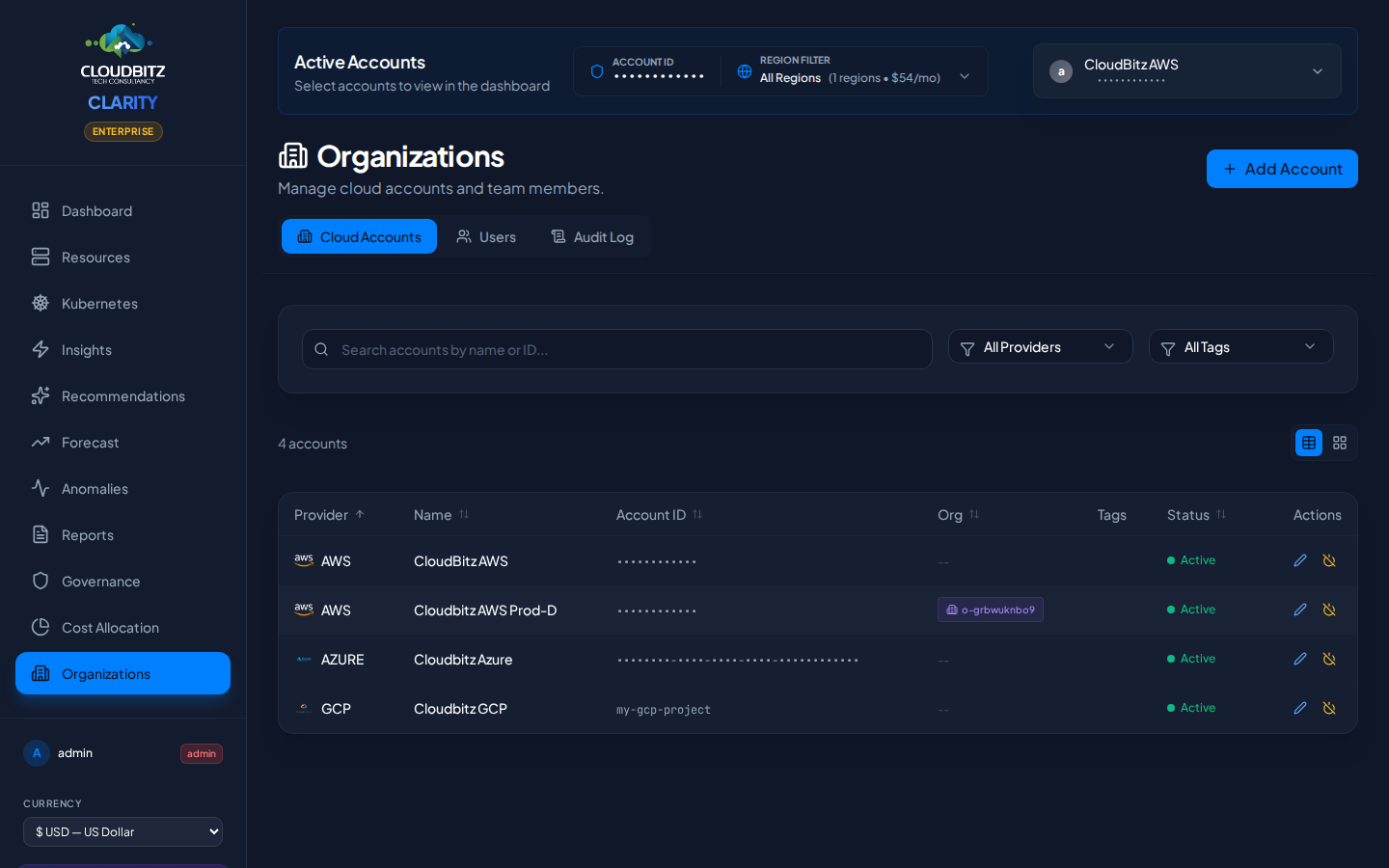
The Organizations page provides visibility into your multi-account cloud structure. Most enterprises operate multiple cloud accounts, subscriptions, or projects — CLARITY discovers and maps these relationships so you can understand costs at the organizational level.
Multi-Account Organization Awareness
CLARITY automatically detects organizational hierarchies when you connect cloud credentials:
| Provider | Organizational Structure |
|---|---|
| AWS | Organizations with Organizational Units (OUs) and member accounts |
| Azure | Management Groups containing subscriptions |
| GCP | Organizations containing folders and projects |
INFO
Organization discovery happens automatically during sync. No additional configuration is required beyond connecting your cloud credentials with appropriate permissions.
AWS Organizations
Org Unit Hierarchy
If your connected AWS account belongs to an AWS Organization, CLARITY discovers and displays:
- Organization root — The top-level org container
- Organizational Units (OUs) — Groupings like "Production", "Development", "Security"
- Member accounts — Individual AWS accounts within each OU
The hierarchy is presented as an expandable tree, showing how accounts are organized.
Member Accounts
Each member account shows:
- Account ID and friendly name
- OU membership — Which organizational unit it belongs to
- Status — Whether the account is connected to CLARITY ("In System" badge)
- Cost contribution — That account's share of the organization's total spend
TIP
Connect all member accounts in your AWS Organization to get complete cost visibility. Accounts that are not connected show in the hierarchy but without cost data.
Azure Subscriptions and Management Groups
Subscription Discovery
CLARITY discovers all Azure subscriptions within your Azure AD tenant:
- Subscription name and ID
- State — Active, disabled, or warned
- Spend — Monthly cost for each subscription
- In System badge — Whether the subscription is connected for cost tracking
Management Groups
If your Azure tenant uses Management Groups, CLARITY maps the hierarchy:
- Root Management Group — Top-level container
- Child groups — Nested management groups for organizational structure
- Subscriptions — Which subscriptions belong to each group
The management group tree provides a clear picture of how your Azure estate is structured for governance and policy purposes.
WARNING
Management Group discovery requires appropriate permissions. If your service principal does not have Management Group Reader access, CLARITY will still show subscriptions but without the group hierarchy.
GCP Project Organization
Project Discovery
For GCP, CLARITY maps your project structure:
- Organization — The top-level GCP organization (if applicable)
- Projects — Individual GCP projects with their IDs and names
- Billing account — Which billing account each project charges to
- Cost contribution — Per-project spend
Folder Hierarchy
If your GCP organization uses folders to group projects, the hierarchy is displayed:
- Organization root
- Folders (e.g., "Production", "Sandbox")
- Projects within each folder
- Folders (e.g., "Production", "Sandbox")
Per-Organization Cost Aggregation
The Organizations page aggregates costs at every level of the hierarchy:
| Level | What You See |
|---|---|
| Organization | Total spend across all accounts/subscriptions/projects |
| OU / Management Group / Folder | Subtotal for that grouping |
| Account / Subscription / Project | Individual cost breakdown |
This top-down view makes it easy to identify which parts of your organization are driving the most spend.
Cross-Account Trends
Compare spending across accounts within the same organization:
- Month-over-month change per account
- Relative share — What percentage of total org spend each account represents
- Growth rate — Which accounts are growing fastest
Cross-Account Visibility
With organization awareness, several CLARITY features gain additional context:
Reports
Organization-aware reports include:
- Org hierarchy visualization in the executive section
- Per-account breakdowns within the spend analysis
- Cross-account anomaly comparison
Cost Allocation
Chargeback rules can reference specific accounts or subscriptions, enabling allocation like:
- "All costs from the
sandboxOU go to the R&D cost center" - "Azure subscription
production-01maps to the Platform team"
Insights
Optimization insights are surfaced per account, with the ability to compare similar resources across accounts (e.g., "Account A runs m5.xlarge at 10% CPU while Account B runs the same at 80%").
Getting Started
Required Permissions
To discover organizational structure, your connected credentials need:
| Provider | Required Access |
|---|---|
| AWS | organizations:DescribeOrganization, organizations:ListAccounts |
| Azure | Subscription Reader, Management Group Reader (optional) |
| GCP | resourcemanager.projects.list, resourcemanager.folders.list (optional) |
Connecting Additional Accounts
To maximize visibility:
- Connect at least one account per organization
- CLARITY will discover the org hierarchy automatically
- Connect additional accounts to fill in cost data for discovered members
- Accounts not yet connected appear with an "External" indicator
TIP
You do not need to connect every account to see the organizational structure. One account with organization-level read permissions is enough to discover the hierarchy. Connect additional accounts when you need their cost data.